Window

Markup: {{window}}

Quick start

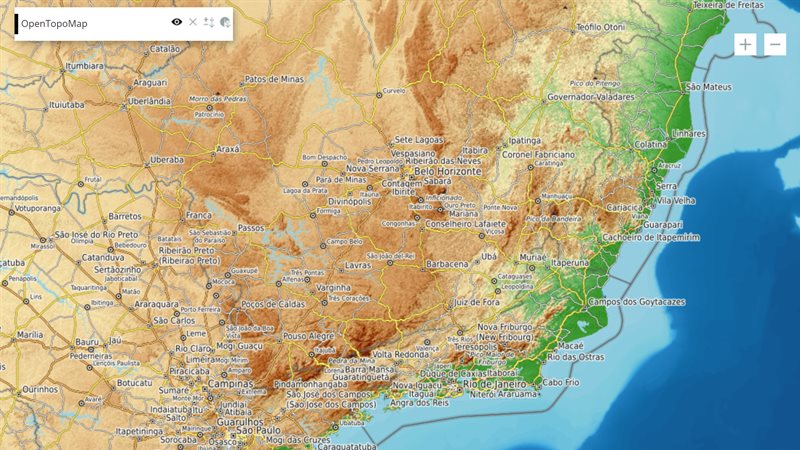
The example below, running in the Mappia calculator - click it to run it live. Full-size picture

  1. Run it

    Click the picture: the map opens right here and runs the example. Nothing is saved, and nothing to install.

  2. Try it
    • The About this map window opens with the map. Drag its title bar, or resize it from a corner.
    • Press About this map in the layer panel: the window closes. Press it again to reopen it.
    • Hide the States layer: the window closes too, and comes back when you show the layer again.
  3. Make it yours

    Copy the query, change it - the key parameters are below - and run it again in the playground, or paste it into the Mappia editor to save it as your map.

Key parameters

ParameterExampleWhat it does
html<p style='padding:10px'>Brazilian states.</p>Starting content of the window. It may contain =, but not | or }}.
startVisibletrueOpens the window as soon as the layer loads. Otherwise users open it with the button.
textAbout this mapLabel of the button that opens and closes the window. Default: Show/Hide Window.
titleAbout this mapText in the window’s title bar.
x380Pixels from the left edge of the page. A negative value counts from the right edge. y works the same from the top.
idabout_windowId of the content area inside the window. Ext.getCmp(id).update(html) replaces its content.

Every parameter, with its type and default, is in the reference at the end of this page.

Complete example

The query 16 lines · runs as is
// Window: a floating window plus the button that opens and closes it. The tag renders as the
// button; startVisible=true opens the window when the layer loads.
[
  {
    title: "States",
    name: "CSR:estados",
    source: "calculate",
    opacity: 0.6,
    visibility: true,
    paramsButtonConfig: [{ type: "query", pressed: true }],
    descriptionHtml:
      "{{window|id=about_window|title=About this map|text=About this map|startVisible=true" +
      "|width=340|height=170|x=380|y=90" +
      "|html=<p style='padding:10px'>Brazilian states. A window can hold text, a chart or extra controls that do not fit in the panel.</p>}}",
  },
];

Customize it

What you get

The tag renders as the button, so it sits in the layer panel while the window floats over the map. Use the window for anything that does not fit in the panel: a chart, a longer text, extra controls.

Size and position

width and height are plain numbers, in pixels. Without them the window is at most 250 wide and 300 high, and users can always resize it. With neither x nor y, or with underButtons=true, the window opens under the buttons at the top right of the map.

Follow the layer, or not

The window closes when its layer is hidden and reopens when the layer is shown again, if it was open before. Add ignoreVisibility=true to keep it independent of the layer. Closing it with its X releases the button.

Change it from code

Give the button an id with btnID. Then you can fill and open the window from any callback:

descriptionHtml:
  "{{button|id=make_report|text=Make report|handler=showReport}}" +
  "{{window|id=report|btnID=report_btn|title=Report|text=Report|html=Loading...}}",
functions: {
  showReport: function () {
    Ext.getCmp("report").update("<b>27</b> states");   // the content area (markup id)
    Ext.getCmp("report_btn").toggle(true);             // open it; the button stays in sync
  },
},

Prefer toggle() on the button over show() and hide() on the window, so the button stays in sync. The window also adds a handle to the layer’s inputs, with getWindow(), getButton() and getContainer(). It is stored under the button’s id, so set btnID and read inputs.id["report_btn"] - the markup id does not find it. It holds page components, so read it in beforeCalc or a handler, never inside expression.

Pitfalls

  • items is ignored: the window always has one content area. Fill it with html or from code.
  • html takes everything up to the next |. For content built at runtime, write into the content area instead.
  • Ids are page-wide. Two windows, or a window and a chart, cannot share an id.
  • onBeforeHide runs before the window hides; return false from it to keep the window open.
Real maps that use it

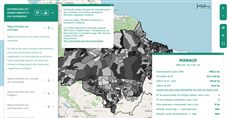
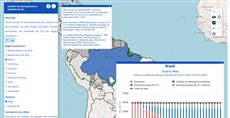
Amazon on focus - Deforestation and fires by land category

Amazon on focus - Deforestation and fires by land category

Amazon on focus - Deforestation and fires by la...

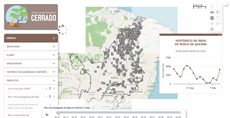
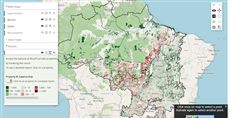
FIP Cerrado - Fire monitoring (current map)

FIP Cerrado - Fire monitoring (current map)

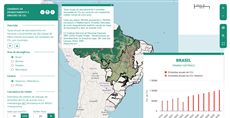
Panorama of Brazil's Forest Code

Panorama of Brazil's Forest Code

REDD Brazil - Deforestation, emissions and credits

REDD Brazil - Deforestation, emissions and credits

SimAmazoniaINFRA - Deforestation and CO2 scenarios

SimAmazoniaINFRA - Deforestation and CO2 scenarios

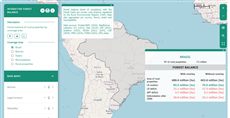
X-ray of the CAR - Forest Code balance per property

X-ray of the CAR - Forest Code balance per prop...

Reference: every parameter

Generated from the platform source. Every entry, searchable, is in the API reference; the raw data is api.json. Open an entry for its description, parameters and example; # links to it.

window · floating window (input)

Window22 entries

Written in a layer's descriptionHtml as {{window|parameter=value|...}}

Tool that allows to show contents in an interactive floating window.
It can only be shown when the layer is visible.
This tool is created from Ext.Window.

btnID

String# Defines the id of the button that controls the window visibility.

Defines the id of the button that controls the window visibility.

|btnID = window-button-id|

getButton

function() : Ext.Button# Returns the show/hide toggle Ext.Button (id btnID), e.g. to toggle(true), setText() or hide() it.

Returns the show/hide toggle Ext.Button (id btnID), e.g. to toggle(true), setText() or hide() it.

Returns The toggle button component.

this.getInputs().id['report_btn'].getButton().setText('Hide report');

getContainer

function() : Ext.Container# Returns the content container (Ext.Container, id id) inside the window.

Returns the content container (Ext.Container, id id) inside the window. Use update(html) to replace its HTML, or add()/doLayout() to place Ext components in it.

Returns The content container of the window.

this.getInputs().id['report_btn'].getContainer().update('<p>' + text + '</p>');

getIds

function() : Array.<String># Returns the ids of the three components created by the tool, in the order [windowID, id (content div), btnID].

Returns the ids of the three components created by the tool, in the order [windowID, id (content div), btnID].

Returns [windowId, containerId, buttonId].

var ids = this.getInputs().id['report_btn'].getIds(); // ['report_win', 'report_div', 'report_btn']

getWindow

function() : Ext.Window# Returns the floating Ext.Window (use it for show(), hide(), setTitle(), setSize(), setPosition()...).

Returns the floating Ext.Window (use it for show(), hide(), setTitle(), setSize(), setPosition()...). Prefer getButton().toggle() to change visibility so the button stays in sync.

Returns The window component (it is destroyed together with the layer).

this.getInputs().id['report_btn'].getWindow().setTitle('Report - ' + year);

height

number# Defines the floating window initial height.

Defines the floating window initial height.

|height = 600px|

html

String# Defines the initial HTML content of the window's container div.

Defines the initial HTML content of the window's container div. Because the parser treats everything after html= as the value, the content may contain = characters; it cannot contain | or }}. For content built at runtime, write into the container instead (inputs.id[ID].getContainer().update(html) or Ext.getCmp(id).update(html)).

|html=<div class="report">Loading...</div>|

id

String# Defines an id for the div contained in the floating window (where the content can be drawn).

Defines an id for the div contained in the floating window (where the content can be drawn).

|id = window-div-id|

ignoreVisibility

Boolean# Defines if the window should ignore the layer visibility state.

Defines if the window should ignore the layer visibility state. By default, the window visibility state is the same as the layer's. Set true to ignore the layer visibility state, false otherwise.

PS: The 'ignoreVisibility' is not compatible with the 'associatedButtonID' property. When both are used together, the ignoreVisibility value is ignored.

|ignoreVisibility = false|

items

Array# Not supported: the tool always creates its own single content container (the div identified by id), so any items written in the markup are discarded.

Not supported: the tool always creates its own single content container (the div identified by id), so any items written in the markup are discarded. Put content in with html=, or render into the container from code (Ext.getCmp(id) / inputs.id[ID].getContainer()).

onBeforeHide

function# Defines a callback function to be called before hiding the floating window.

Defines a callback function to be called before hiding the floating window.

layer Object
Scope of the layer
data Array
[window, button, windowConfig] window: Window object; button: Button created; windowConfig: Window object configuration
|onBeforeHide = function (layer, [window, button, windowConfig]){
 console.log(layer);
 console.log([window, button, windowConfig]);
}|

resize

function# Defines the callback function to be called when the floating window is resized.

Defines the callback function to be called when the floating window is resized.

|resize = function (){
 console.log("I was resized!");
}|

startVisible

Boolean# Defines if the window should start visible or not.

Defines if the window should start visible or not. Set true if it should, false otherwise.

|startVisible = false|

text

string= Show/Hide Window# Defines the window button text.

Defines the window button text.

|text = I am a button|

title

String= Window# Defines the floating window's title.

Defines the floating window's title.

|title = Title of the Window|

toggle

function(pressed)# Shows or hides the floating window from code by pressing/releasing its toggle button — the same as the user clicking it, so onBeforeHide still runs.

Shows or hides the floating window from code by pressing/releasing its toggle button — the same as the user clicking it, so onBeforeHide still runs. Call it on the button: inputs.id[ID].getButton().toggle(state) or Ext.getCmp(btnID).toggle(state). Without an argument the state is inverted.

pressed Boolean
true to show the window, false to hide it; omit to invert.
this.getInputs().id['report_window'].getButton().toggle(true);

underButtons

Boolean# Defines where the floating window will be positioned in relation to the buttons panel.

Defines where the floating window will be positioned in relation to the buttons panel. Set true to position the window under the right buttons panel, false otherwise.

|underButtons = false|

value

Object# Value stored in inputs.id[btnID] - under the show/hide button's id, not the markup id, so set btnID to read it (without one the key is an automatic id): a small handle object with the methods …

Value stored in inputs.id[btnID] - under the show/hide button's id, not the markup id, so set btnID to read it (without one the key is an automatic id): a small handle object with the methods getIds(), getWindow(), getButton() and getContainer() to reach the three Ext components of the tool (the floating window, its content div and the show/hide button). The input is registered on the window afterrender event, so it triggers one recalculation when the window is first rendered; it never changes afterwards. The handle contains component references, so do not use it inside expression (WebWorker) — read it in beforeCalc or in button/window callbacks.

{{window|id=report_div|btnID=report_btn|windowID=report_win|title=Report|startVisible=true}}
beforeCalc: function(inputs) {
    var wnd = inputs.id['report_btn'];
    wnd.getContainer().update('<b>Total:</b> ' + total);
    wnd.getButton().toggle(true);
}

width

number# Defines the floating window initial width.

Defines the floating window initial width.

|width = 600px|

windowID

String# Defines the window id.

Defines the window id.

|windowID = window-id|

x

Number# Defines the initial absolute X position of the window, in pixels from the left edge of the page.

Defines the initial absolute X position of the window, in pixels from the left edge of the page. A negative value counts from the right edge instead: the window's right side is placed at viewportWidth + x (e.g. x=-10 leaves a 10px margin on the right).

PS: Overwritten when 'underButtons' is used (or when neither x nor y is given).

|x=-115|y=103|

y

Number# Defines the initial absolute Y position of the window, in pixels from the top of the page.

Defines the initial absolute Y position of the window, in pixels from the top of the page. A negative value counts from the bottom edge instead: the window's bottom side is placed at viewportHeight + y (e.g. y=-20 leaves a 20px margin at the bottom).

PS: Overwritten when 'underButtons' is used (or when neither x nor y is given).

|x=20|y=-20|