Clicking and hovering on features

Quick start

The example below, running in the Mappia calculator - click it to run it live. Full-size picture

  1. Run it

    Click the picture: the map opens right here and runs the example. Nothing is saved, and nothing to install.

  2. Try it
    • Move the pointer over a blue point: it grows and turns orange, and the panel says which point it is.
    • Click it: the point turns red and the panel shows its name and coordinates.
    • Click another point: the first one turns blue again and the new one turns red.
  3. Make it yours

    Copy the query, change it - the key parameters are below - and run it again in the playground, or paste it into the Mappia editor to save it as your map.

Key parameters

ParameterExampleWhat it does
onClickfunction (feature) { Ext.getCmp("clicked_point").setText(feature.attributes.name); }Runs when the user selects a feature; feature.attributes holds its properties and this is the layer.
defaultStyle{ graphicName: "circle", pointRadius: 12, fillColor: "#2980b9" }How every feature is drawn: OpenLayers style properties such as fillColor, strokeWidth, pointRadius, label.
selectStyle{ pointRadius: 15, fillColor: "#e74c3c" }Style of the selected feature. Only the properties that change are needed; the rest comes from defaultStyle.
onHoverfunction (feature, entering) { }Runs when the pointer enters (entering true) or leaves (entering false) a feature. Also switches on the hover style.
hoverStyle{ pointRadius: 15, fillColor: "#f39c12" }Style of the feature under the pointer. Shown only when the layer also has onHover.
clusterDistance40Groups points closer than this many pixels into one symbol; 0 (the default) never clusters.

Every parameter, with its type and default, is in the reference at the end of this page.

Complete example

The query 32 lines · runs as is
// Clicking and hovering features: onClick receives the clicked feature (here its attributes
// are written in the panel) and selectStyle marks it; onHover runs when the pointer enters and
// leaves a feature (here it names it in the panel) and hoverStyle - which needs an onHover -
// marks it. The points file ships with the platform. (popupTemplate is accepted but opens
// nothing: use onClick.)
[
  {
    title: "Example points",
    name: "example_points",
    source: "file",
    type: "jsonurl",
    url: "/theme/app/data/points_example.json", // [{"lon":-50,"lat":-10,"name":"name1"}, ...]
    coordinates: { x: "lon", y: "lat" },
    fromProj: "EPSG:4326",
    visibility: true,
    paramsButtonConfig: [{ type: "query", pressed: true }],
    descriptionHtml:
      "{{label|id=hovered_point|text=Point at a feature to see its name.}}<br>" +
      "{{label|id=clicked_point|text=Click a feature to select it.}}",
    onClick: function (feature) {
      var point = feature.attributes;
      Ext.getCmp("clicked_point").setText("Selected " + point.name + ": longitude " + point.lon + ", latitude " + point.lat);
    },
    onHover: function (feature, entering) {
      var label = Ext.getCmp("hovered_point");
      if (label) label.setText(entering ? "Pointing at " + feature.attributes.name : "Point at a feature to see its name.");
    },
    defaultStyle: { graphicName: "circle", pointRadius: 12, fillColor: "#2980b9", fillOpacity: 0.9, strokeColor: "#ffffff", strokeWidth: 2 },
    hoverStyle: { pointRadius: 15, fillColor: "#f39c12" },
    selectStyle: { pointRadius: 15, fillColor: "#e74c3c" },
  },
];

Customize it

Show the attributes

onClick(feature, source, inputs) runs when a feature is selected; feature.attributes holds its properties. popupTemplate and popupCallback are accepted but never read, so no popup opens. Show what you need from onClick, with a notification (ExtjsUtils.ALERTIFY.log) or your own HTML.

Selection

  • Clicking a feature selects it and unselects the previous one; clicking an empty part of the map unselects it.
  • onClickCfg: { multiple: true } keeps several features selected at once; onClickCfg: { toggle: true } unselects a feature when it is clicked again.
  • onClick runs only on select. When you also need to know about the unselect, use onSelectionToggle in its place: the same function runs for both, its fourth argument is "select" or "unselect", and clicking a selected feature again unselects it.
  • From code, this.selectController selects for you: select(feature), unselect(feature), unselectAll(), for example to highlight a feature chosen in a list (this.findFeatureById(id) finds it).

Hover

The hover highlight is switched on only when the layer has an onHover callback, so a hoverStyle alone never shows. An empty function is enough:

onHover: function (feature, state) {
  // state: true when the pointer enters the feature, false when it leaves
},
hoverStyle: { pointRadius: 11, fillColor: "#f39c12" },

hoverSelectedStyle styles a selected feature under the pointer; it needs both onClick and onHover.

Styles from the data

A ${name} placeholder in a style is replaced by the feature’s name attribute, so label: "${name}" writes each name on the map. With a context, placeholders are taken from the context instead: functions that receive the feature and return the value.

defaultStyle: {
  pointRadius: 8,
  fillColor: "${colorOf}",
  context: {
    colorOf: function (feature) { return feature.attributes.lon < -50 ? "#16a085" : "#2980b9"; }
  }
},

Many points: clusters

With clusterDistance, a click on a group passes the cluster itself: feature.attributes.count is the number of points in it and feature.cluster the points. To group by an attribute or change the distance with the zoom, use cluster with distance and clusterKey functions; see File source layers.

Pitfalls

  • Write the callbacks as regular functions, not arrow functions: this is the layer.
  • The callbacks belong to source: "file" layers (GeoJSON, JSON, CSV, drawn shapes). For maps served as images, use Pickpoint or Hoverpixel.
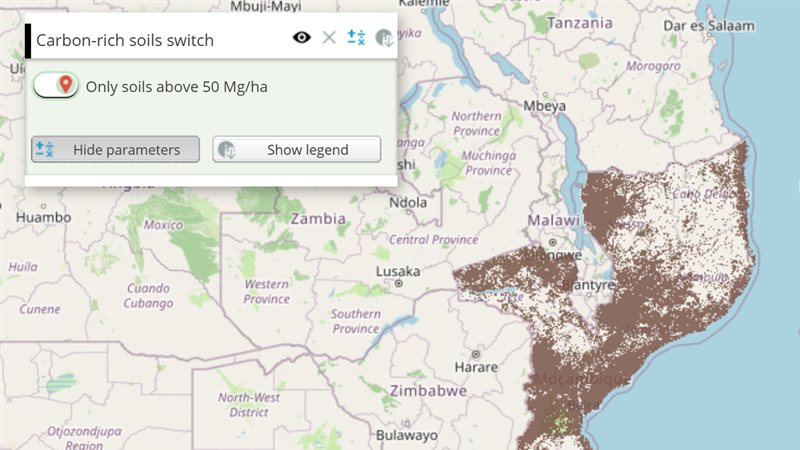
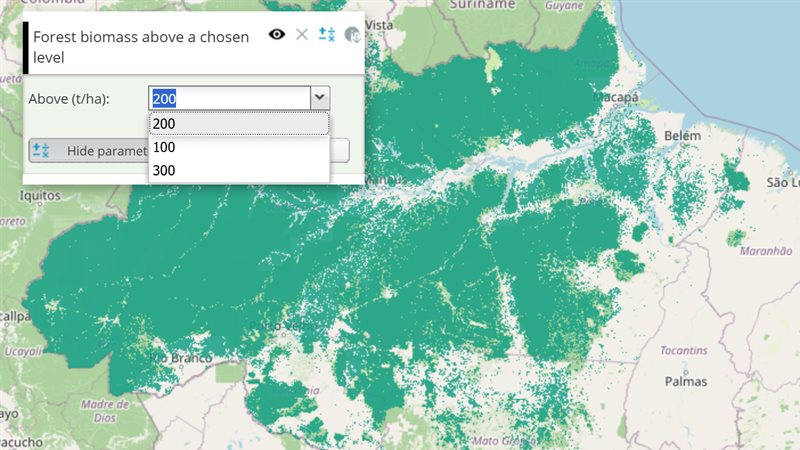
Real maps that use it

SimAmazoniaINFRA - Deforestation and CO2 scenarios

Reference: the parameters used here

Generated from the platform source. Every entry, searchable, is in the API reference; the raw data is api.json. Open an entry for its description, parameters and example; # links to it.

File layers: style, events, drawing

VectorLayer14 entries
Keys and methods of a file layer: styles, clustering, click and hover callbacks (onClick, onHover), drawing (drawable), and the methods your functions call on this.
View complete VectorLayer documentation API here.

cluster

Object# AnimatedCluster options.

AnimatedCluster options. Truthy object enables clustering even when clusterDistance is omitted.

Zoom / map state is not passed into callbacks — read it yourself via this.layer.map (call scope is the strategy) or ExtjsUtils.JS.getMap().

cluster: {
  distance: function() {
    return this.layer.map.getZoom() > 14 ? 40 : 80;
  },
  clusterKey: function(feature) {
    var zoom = this.layer.map.getZoom();
    if (zoom <= 10) return feature.attributes.regiao;
    if (zoom <= 14) return feature.attributes.bairro;
    return null; // distance only
  },
  clusterGeometry: function(cluster) {
    var key = cluster.attributes.clusterKey;
    var zoom = this.layer.map.getZoom();
    if (zoom <= 10 && REGION_GEOMS[key]) return REGION_GEOMS[key];
    if (zoom <= 14 && BAIRRO_GEOMS[key]) return BAIRRO_GEOMS[key];
    return this.defaultClusterGeometry(cluster); // hull / point
  },
  minClusterPolygonPx: 28
}

clusterDistance

Numeric# Defines the minimum relative distance (in pixels) to clusterize points.

Defines the minimum relative distance (in pixels) to clusterize points. Set 0 to never clusterize, or a value greater than 0 to set the minimum distance. For a membership key or dynamic distance, use {@link VectorLayer.cluster} instead (or together — cluster options win; clusterDistance fills default distance). PS: When filters are applied, you can use the property 'count' on 'VectorLayer.styleMap' property to check how many points exists in the current cluster.

(Standalone doc comment: the value is read inside strategies below, which carries the cluster block, so this one is named explicitly.)

defaultStyle

Object# Defines the default style that will be applied to the geometry.

Defines the default style that will be applied to the geometry. PS: Accepts 'context' and 'rules'.
    Property 'context': allows definition of functions.
    Property 'rules': allows definition of filters (only the geometries that fit into this rule will be displayed).

Look at some examples at: http://dev.openlayers.org/examples/

defaultStyle: {color: '${getColor}', context: {getColor: function(attr){return 'green';} }

hoverSelectedStyle

Object# Defines the style that will be applied to the geometry when the mouse hovers over a selected feature.

Defines the style that will be applied to the geometry when the mouse hovers over a selected feature. Default hover selected style is the selected style
PS: Accepts 'context' and 'rules'.
    Property 'context': allows definition of functions.
    Property 'rules': allows definition of filters (only the geometries that fit into this rule will be displayed). PS2: Hover Select depends on both 'onHover' and 'onClick' properties to work.

Look at some examples at: http://dev.openlayers.org/examples/

[{color: '${getColor}', context: {getColor: function(attr){return 'green';} }]

hoverStyle

Object# Defines the style that will be applied to the geometry when mouse is hovering.

Defines the style that will be applied to the geometry when mouse is hovering. PS: Accepts 'context' and 'rules'.
    Property 'context': allows definition of functions.
    Property 'rules': allows definition of filters (only the geometries that fit into this rule will be displayed). PS2: Hover depends on 'onHover' property that allows to hovering.

Look at some examples at: http://dev.openlayers.org/examples/

[{color: '${getColor}', context: {getColor: function(attr){return 'green';} }]

onClick

function# Defines the callback function to the click event on Layer.

Defines the callback function to the click event on Layer.

event Object
The click event Object.
source VectorFileSource
Auxiliary functions to deal with Vector Layer.
inputs Array.<Object>
Array with all layer input values.
{
     ...,
     onClick: function (feature) {
    console.log(feature.attributes);
         console.log("Triggered click event!");
     },
     ...
}
[{
  name:"CSR:FileGeojson",
  source: "file",
  type: "geojsonurl",
  url: "/theme/app/data/fip_interativo/amazonia/amazonia_municipios.geojson",
  onClick: function(feature, layerSource, inputs, toggleStatus) {
    console.log(arguments);
  }
}]

onClickCfg

function# Defines the callback function to the Click Select controller.

Defines the callback function to the Click Select controller. The additional parameters are listed in http://dev.openlayers.org/docs/files/OpenLayers/Control/SelectFeature-js.html.

onHover

function# Defines the callback function on 'Vector Layer' hover.

Defines the callback function on 'Vector Layer' hover.

evt Object
Features.
state Boolean
True when hover starts, false when it ends.
controller Object
The controller itself.
inputs Object
Layer widget values.
{
     ...,
     onHover: function (evt, state, controller, inputs) {
         console.log(state ? "Started": "Ended");
     },
     ...
}
[{
  name:"CSR:FileGeojson",
  source: "file",
  type: "geojsonurl",
  url: "/theme/app/data/fip_interativo/amazonia/amazonia_municipios.geojson",
  onHover: function(feature, state, controller, inputs) {
    console.log(feature.attributes);
    console.log(arguments);
  }
}]

onSelectionToggle

function# Defines the callback function to the unselect feature.

Defines the callback function to the unselect feature.

event Object
The click event Object.
source VectorFileSource
Auxiliary functions to deal with Vector Layer.
inputs Array.<Object>
Array with all layer input values.
[{
  name:"CSR:FileGeojson",
  source: "file",
  type: "geojsonurl",
  url: "/theme/app/data/fip_interativo/amazonia/amazonia_municipios.geojson",
  onSelectionToggle: function(feature, layerSource, inputs, toggleStatus) {
    console.log(feature.attributes);
    alert(toggleStatus);
  }
}]

popupCallback

function# Not implemented for file layers: accepted but never called (see popupTemplate).

Not implemented for file layers: accepted but never called (see popupTemplate). Use onClick, which receives the clicked feature.

attributes Array
attributes for popupCallback
inputs Array
inputs for popupCallback
{
     ...,
     popupCallback: function (attributes, inputs) {
         
     },
     ...
}

popupTemplate

String# Not implemented for file layers: the value is accepted and kept on the layer, but nothing reads it, so no popup ever opens (the template belongs to the gxp feed sources this layer does not extend).

Not implemented for file layers: the value is accepted and kept on the layer, but nothing reads it, so no popup ever opens (the template belongs to the gxp feed sources this layer does not extend). Show a feature's attributes from onClick instead - for example with ExtjsUtils.ALERTIFY.log or ExtjsUtils.TooltipHelper.CreateTooltipOnPosition.

onClick: function (feature) { ExtjsUtils.ALERTIFY.log("<b>" + feature.attributes.name + "</b>"); }

selectController

OpenLayers.Control.CustomSelectFeature= undefined# The selection control created for the layer when onClick, onSelectionToggle or onHover is defined (undefined otherwise).

The selection control created for the layer when onClick, onSelectionToggle or onHover is defined (undefined otherwise). It is the OpenLayers.Control.CustomSelectFeature instance, so you can call its select(feature), unselect(feature), unselectAll(), activate()/deactivate() from layer callbacks, e.g. to select a feature found with findFeatureById.

functions: {
   selectFirst: function() {
      if (this.selectController && this.features.length) {
         this.selectController.unselectAll();
         this.selectController.select(this.features[0]);
      }
   }
}

selectStyle

Object# Defines the default style that will be applied to the selected geometry.

Defines the default style that will be applied to the selected geometry. PS: Accepts 'context' and 'rules'.
    Property 'context': allows definition of functions.
    Property 'rules': allows definition of filters (only the geometries that fit into this rule will be displayed). PS2: Selected depends on 'onClick' property that allows to select.

Look at some examples at: http://dev.openlayers.org/examples/

[{color: '${getColor}', context: {getColor: function(attr){return 'green';} }]

styleMap

Object|OpenLayers.StyleMap# Customizes the layer visualization.

Customizes the layer visualization. PS: It is an advanced parameter, so it might be easier to use selectedStyle, defaultStyle and hoverStyle. PS2: The 'hover' style is applied on hover event.

StyleMap{[default, select, hover, selectedHover]: Style {rules:[Rule,], context: {getRadius: function() {return Math.random()}}}

File layers: click and hover control

CustomSelectFeature7 entries
The select/hover control created for vector layers with onClick/onHover callbacks, reachable as layer.selectController. Extends OpenLayers.Control.SelectFeature.

click

Boolean= false# Select on click.

Select on click. When true, clicking a feature selects it (select), clicking a selected one again unselects it when toggle is set, and clicking outside unselects all when clickout is set. The platform sets it for layers with onClick / onSelectionToggle. When false, select/unselect are no-ops.

defaultStyle

String= "default"# Name of the StyleMap render intent used to draw a feature that is neither hovered nor selected (getFeatureCurrentStyle returns it in that case).

Name of the StyleMap render intent used to draw a feature that is neither hovered nor selected (getFeatureCurrentStyle returns it in that case).

hover

Boolean= false# Highlight on mouse over and unhighlight on mouse out (without selecting).

Highlight on mouse over and unhighlight on mouse out (without selecting). The platform sets it for layers with onHover; the featurehighlighted / featureunhighlighted events of the control fire the layer's onHover callback.

hoverStyle

String= "hover"# Name of the StyleMap render intent used to draw a hovered, unselected feature.

Name of the StyleMap render intent used to draw a hovered, unselected feature. It matches the VectorLayer.hoverStyle entry of the layer's styleMap.

multiple

Boolean= false# Allows more than one selected feature at a time: with false selecting a feature unselects the previous one.

Allows more than one selected feature at a time: with false selecting a feature unselects the previous one. Pass it through onClickCfg: {multiple: true}.

selectHoverStyle

String= "selectedHover"# Name of the StyleMap render intent used to draw a feature that is selected AND hovered.

Name of the StyleMap render intent used to draw a feature that is selected AND hovered. It matches the VectorLayer.hoverSelectedStyle entry of the layer's styleMap.

selectedStyle

String= "selected"# Name of the StyleMap render intent used to draw a selected feature that is not hovered.

Name of the StyleMap render intent used to draw a selected feature that is not hovered. The platform passes "select" for file layers (the VectorLayer.selectStyle entry of the layer's styleMap); this is the stock default otherwise.