Quick start
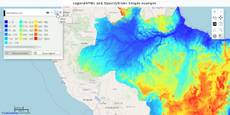
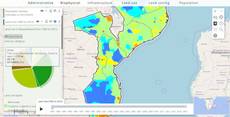
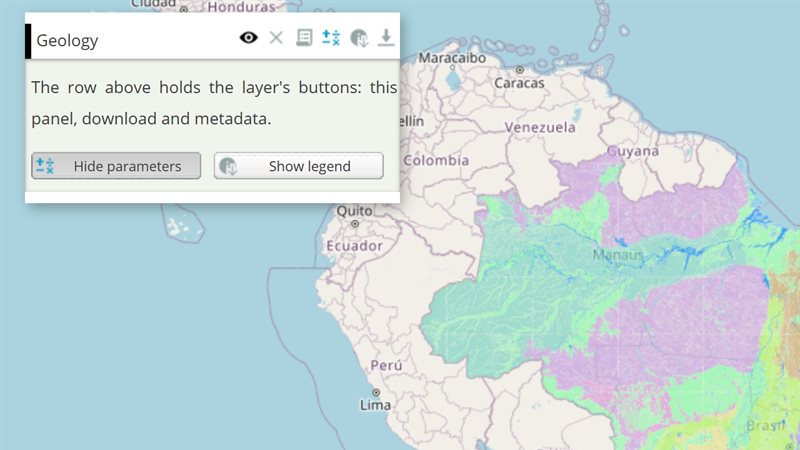
The example below, running in the Mappia calculator - click it to run it live. Full-size picture
- Run it
Click the picture: the map opens right here and runs the example. Nothing is saved, and nothing to install.
- Try it
- Drag the opacity slider to the left: the geology map fades and the base map shows through.
- Click an entry in the legend: that class disappears from the map. Click it again to bring it back.
- Make it yours
Copy the query, change it - the key parameters are below - and run it again in the playground, or paste it into the Mappia editor to save it as your map.
Key parameters
| Parameter | Example | What it does |
|---|---|---|
filterLayers | [0] | For a layer with several maps in name, shows only the legends of these positions (0 is the first map). |
reverseLegend | true | Lists the legend entries in decreasing order. |
preventClick | true | Stops users from hiding a class by clicking its legend entry. |
value | 50 | Starting opacity of the slider, in percent. Used only when the layer has no opacity of its own. |
aggressive | true | Changes the opacity while the slider is being dragged, not only when it is released. |
inverse | true | Makes the slider set transparency instead of opacity: 100 means invisible. |
Every parameter, with its type and default, is in the reference at the end of this page.
Complete example
The query 13 lines · runs as is
// LegendHtml and OpacitySlider: the legend of the layer inside its panel, and a slider
// that controls the layer's opacity.
[
  {
    title: "Geology",
    name: "CSR:geologia",
    source: "calculate",
    opacity: 0.8,
    visibility: true,
    paramsButtonConfig: [{ type: "query", pressed: true }],
    descriptionHtml: "{{label|text=Opacity}}{{opacityslider}}{{legendhtml}}",
  },
];
Customize it
Where they go
Put both tags anywhere in descriptionHtml, in any order, next to your other widgets. Neither one is an input: they never start a recalculation and take no position in inputs. Without {{legendhtml}} the legend is still there, behind the layer’s legend button; the tag puts it right in the panel, where users see it while they work with your widgets.
Starting opacity
The slider starts at the layer’s own opacity (0 to 1). The example sets opacity: 0.8, so the slider starts at 80. The slider’s value counts only when the layer has no opacity. Limit the range with minValue and maxValue (in percent). Add changeVisibility=true to hide the layer when the slider reaches its minimum.
A title above the legend
Set legendTitle on the layer to show a line of text above {{legendhtml}}.
Your own legend entries
On a calculated layer with an expression, you can set the entries yourself in beforeCalc. {{legendhtml}} then shows your entries:
beforeCalc: function () {
  this.setCalculateLegend([
    { color: [0, 0, 255], value: 500, title: "Up to 500 m" },
    { color: [255, 0, 0], value: 3000, title: "Above 500 m" },
  ]);
},
Each value is the highest number that gets that color. Sort the entries by value, lowest first: entries out of order are ignored.
Pitfalls
- Colors in
setCalculateLegendare[R, G, B]arrays. A CSS string such as"#c0392b"breaks the legend withcolor.join is not a function. filterLayersis a list, even for a single map: writefilterLayers=[0], notfilterLayers=0.legendIdis a parameter of{{legendhtml}}. Written on the layer, it does nothing.complementaryLayerneeds a layer object, so you cannot set it in the markup.